Introduction
This API allows for the integration of HOP into merchant web shops.
A HOP payment consists of 3 steps:
- Authorisation
- Requesting payment
- Processing payment status
Merchants can independently query for the status of a payment.
In order to use the API you will need:
- Merchant Id
- Password
- Merchant Key
These will have been provided to you by Hakrinbank.
Authorization
Authorisation request
<?php
$curl = curl_init();

curl_setopt_array($curl, array(
  CURLOPT_URL => "https://hop.hakrinbank.com/gateway/service/WebshopAuth/00000000/aaaaa00000/1691709/13.45",
  CURLOPT_RETURNTRANSFER => true,
  CURLOPT_ENCODING => "",
  CURLOPT_MAXREDIRS => 10,
  CURLOPT_TIMEOUT => 30,
  CURLOPT_HTTP_VERSION => CURL_HTTP_VERSION_1_1,
  CURLOPT_CUSTOMREQUEST => "GET"
));

$response = curl_exec($curl);

curl_close($curl);
HttpClient client = new HttpClient();
System.Net.ServicePointManager.SecurityProtocol |= SecurityProtocolType.Tls11 | SecurityProtocolType.Tls12;
client.BaseAddress = new Uri("https://hop.hakrinbank.com/gateway/service/WebshopAuth/00000000/aaaaa00000/1691709/13.45");
client.Timeout = new System.TimeSpan(1, 0, 0);
client.DefaultRequestHeaders.Accept.Clear();
client.DefaultRequestHeaders.Accept.Add(
    new MediaTypeWithQualityHeaderValue("application/json"));

HttpResponseMessage response = client.GetAsync(String.Empty).Result;
Authorisation response
{
    "Code":"0",
    "Resp":"1d3496824b626ed7cf712512ec42e3c3"
}
In order to request a payment with HOP, you need to include an authorisation token.
To request an authorisation token you will need the Merchant Id and Password provided to your shop by Hakrinbank.
This token needs to be requested for each payment you wish to make and will expire in a fixed amount of time or when used in payment.
HTTP Request
GET https://hop.hakrinbank.com/gateway/service/WebshopAuth/<merchant_id>/<password>/<invoice#>/<amount>
URL Parameters
| Parameter | Description |
|---|---|
| merchant_id | The Merchant Id provided to you by Hakrinbank |
| password | The Password provided to you by Hakrinbank |
| invoice# | The invoice number which you intend to use for the transaction |
| amount | The payment amount to be made with the transaction |
HTTP Response
The request will return a JSON response containing a status code and the token.
| Code | Resp | Description |
|---|---|---|
| 0 | token |
The token to be used in the transaction |
| 1 | SERVICE_OFFLINE | The service is offline |
| 2 | ACCOUNT_VIOLATION | Service to merchant suspended due to account violations |
| 3 | INPUT_NOT_ALLOWED | “Dirty” input |
| 4 | ACCOUNT_INACTIVE | Merchant account is inactive or does not exist |
| 5 | PASSWORD_INCORRECT | The password provided is incorrect |
Payment
Once you have your authorisation token, you can request payment with HOP. The user should be redirected from your webshop to HOP or HOP should be opened in a new window to complete the payment.
Request payment
<?php

header('Location: https://hop.hakrinbank.com/gateway/service/PaymentController.php?TokenID=1d3496824b626ed7cf712512ec42e3c3&Email=user@mailer.com&Amount=13.45&Desc=Some_Item&Inv=1691709&returnURL=http%3A%2F%2Fdemo.web.com%2Fpayments%0A%2Fservice');
Response.Redirect("https://hop.hakrinbank.com/gateway/service/PaymentController.php?TokenID=1d3496824b626ed7cf712512ec42e3c3&Email=user@mailer.com&Amount=13.45&Desc=Some_Item&Inv=1691709&returnURL=http%3A%2F%2Fdemo.web.com%2Fpayments%0A%2Fservice")
HTTP Request
GET https://hop.hakrinbank.com/gateway/service/PaymentController.php
Parameters
| Parameter | Description |
|---|---|
| TokenID | The token you received during authorisation |
| Email (optional) | User email account - currently not used |
| Amount | Purchase amount. Amount should be in decimals; no commas or currency symbols allowed. e.g: SRD 4,75 => 4.75 |
| Desc | Purchase description |
| Inv | Purchase invoice number |
| returnURL | Callback URL for status updates (pending / cancel / paid). Must be url_encoded. |
This will bring customers to HOP where they will see the details of the transaction you wish to make. From here they will be able to authorise or cancel this transaction.
Process Payment
After the user has interacted with HOP regarding the transaction, HOP will do the following:
- Notify the merchant and then
- Redirect the user
HOP will use the returnURL for both actions and append parameters to this URL.
In the following examples a returnURL with value http://your-domain-name/path/to/service/ is assumed
Notification
If the user authorizes the payment and the bank processes it successfully, HOP will call:
http://your-domain-name/path/to/service/4354BbDf05D74f8a879108870e156e22/1691709/paid
If the user authorizes the payment but the transaction fails, HOP will call:
http://your-domain-name/path/to/service/4354BbDf05D74f8a879108870e156e22/1691709/failed
If the user cancels the payment or the request has expired, HOP will call:
http://your-domain-name/path/to/service/4354BbDf05D74f8a879108870e156e22/1691709/cancel
HOP will append the <merchant_key>, <invoice#> and <status> to the returnURL and execute a call to the resulting callback URL.
The Merchant Key should be used by the merchant to verify the authenticity of the notification.
Merchants can update the status of the order in their database by executing custom code at the callback URL.
Paid
If the user authorizes the payment and the bank processes it successfully, HOP will call:
http://your-domain-name/path/to/service/<merchant_key>/<invoice#>/paid
Failed
If the user authorizes the payment but the transaction fails, HOP will call:
http://your-domain-name/path/to/service/<merchant_key>/<invoice#>/failed
Cancel
If the user cancels the payment or the request has expired, HOP will call:
http://your-domain-name/path/to/service/<merchant_key>/<invoice#>/cancel
URL parameters
| Parameter | Description | Values |
|---|---|---|
| merchant_key | The key for the merchant requesting this transaction | The Merchant Key provided to you by Hakrinbank |
| invoice# | The invoice number for this transaction | The invoice number supplied by the merchant when requesting the payment |
| status | The status of the payment request | pending = Payment submitted and awaiting for user action paid = Payment processed successfully by bank failed = Payment denied by bank cancel = Payment canceled by user / expired |
Redirect
If the user authorizes the payment and the bank processes it successfully, HOP will redirect to:
http://your-domain-name/path/to/service/0/<invoice#>/success/APPROVED
If the user authorizes the payment but the transaction fails, HOP will redirect to:
http://your-domain-name/path/to/service/0/<invoice#>/failed/INVALID_PIN

or

http://your-domain-name/path/to/service/0/<invoice#>/failed/NOT_ENOUGH_FUNDS
If the user cancels the payment, HOP will redirect to:
http://your-domain-name/path/to/service/0/<invoice#>/cancel/USER_CANCEL
After the merchant has been notified, HOP will redirect the users back to the shop.
HOP will append the <merchant_key>, <invoice#>, status and payment_gateway_message to the returnURL and redirect the user.
The merchant can use this page to update the user on the status of their transaction.
Paid
If the user authorizes the payment and the bank processes it successfully, HOP will redirect to:
http://your-domain-name/path/to/service/<merchant_key>/<invoice#>/paid/<payment_gateway_message>
Failed
If the user authorizes the payment but the transaction fails, HOP will redirect to:
http://your-domain-name/path/to/service/<merchant_key>/<invoice#>/failed/<payment_gateway_message>
Cancel
If the user cancels the payment or the request has expired, HOP will redirect to:
http://your-domain-name/path/to/service/<merchant_key>/<invoice#>/cancel/<payment_gateway_message>
| Parameter | Description | Values |
|---|---|---|
| merchant_key | The key for the merchant requesting this transaction | Defaults to 0 |
| invoice# | The invoice number for this transaction | The invoice number supplied by the merchant when requesting the payment |
| status | The status of the payment request | pending = Payment submitted and awaiting user action paid = Payment processed successfully by bank failed = Payment denied by bank cancel = Payment canceled by user / expired |
| payment_gateway_message | A string providing contextual information for the status | APPROVED INVALID_PIN NOT_ENOUGH_FUNDS USER_CANCEL |
Query Payment Status
<?php

$curl = curl_init();

curl_setopt_array($curl, array(
  CURLOPT_URL => "https://hop.hakrinbank.com/gateway/service/PaymentStatus/00000000/aaaaa00000/1691709/200318",
  CURLOPT_RETURNTRANSFER => true,
  CURLOPT_ENCODING => "",
  CURLOPT_MAXREDIRS => 10,
  CURLOPT_TIMEOUT => 30,
  CURLOPT_HTTP_VERSION => CURL_HTTP_VERSION_1_1,
  CURLOPT_CUSTOMREQUEST => "GET",
));

$response = curl_exec($curl);

curl_close($curl);
HttpClient client = new HttpClient();
System.Net.ServicePointManager.SecurityProtocol |= SecurityProtocolType.Tls11 | SecurityProtocolType.Tls12;
client.BaseAddress = new Uri("https://hop.hakrinbank.com/gateway/service/PaymentStatus/00005407/5d2aFa7c62/1691709/200318");
client.DefaultRequestHeaders.Accept.Clear();
client.DefaultRequestHeaders.Accept.Add(
    new MediaTypeWithQualityHeaderValue("application/json"));

HttpResponseMessage response = client.GetAsync(String.Empty).Result;
Payment status response for single payment attempt on invoice number
{
    "Code":"0",
    "Txn_Number":"123456",
    "Status":"APPROVED",
    "RespCode":"00",
    "Email":"user@mailer.com",
    "Amount":"6.00",
    "Time":"18-09-2017 22:54:02"
}
Payment status response when multiple payment attempts have been made on the same invoice number
{
    "records":
    [
        {
            "Txn_Number": "000001",
            "Status": "INVALID PIN",
            "RespCode": "51",
            "Email": "user@mailer.com",
            "Amount": "13.83",
            "Time": "07-04-2018 11:23:31"
        },
        {
            "Txn_Number": "662233",
            "Status": "APPROVED",
            "RespCode": "00",
            "Email": "user@mailer.com",
            "Amount": "13.83",
            "Time": "07-04-2018 11:24:58"
        }
    ]
}
In addition to waiting on a notification from HOP to update their orders, merchants can also independently query for the status of a transaction.
HTTP Request
GET https://hop.hakrinbank.com/gateway/service/PaymentStatus/<merchant_id>/<password>/<invoice#>/<date>
URL Parameters
| Parameter | Description |
|---|---|
| merchant_id | The Merchant Id provided to you by Hakrinbank |
| password | The Password provided to you by Hakrinbank |
| invoice# | The invoice number assigned by the merchant to the transaction |
| date | The date the transaction was made formatted as DDMMYY. if not supplied, defaults to current date. |
HTTP Response properties
| Property | Description | Values |
|---|---|---|
| Code | Query result | 0 = Success (Got Payment Status) 1 = Service Offline 2 = Account Violation 3 = Input Not Allowed 4 = Account does not exist 5 = Password Incorrect |
| Txn_Number | Authorization number from bank system | |
| Status | Text description of bank response | |
| RespCode | Response code from bank system | 00 = success Any other value indicates a failure |
| User account | ||
| Time | Date and time of transaction | |
| Amount | Transaction amount |
If a payment was attempted multiple times with the same invoice number, the response will contain an array of the status of all attempts.
Plugins
HOP has plugins available for WordPress WooCommerce and Magento 2.0+. If your webshop is built on any of these systems, we recommend integrating HOP this way.
WordPress WooCommerce
Download the HOP WooCommerce plugin.
Install plugin
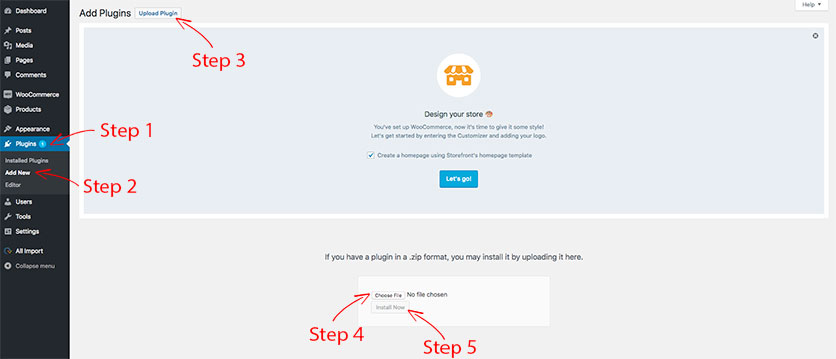
- Step 1: Go to Plugins
- Step 2: Click Add new
- Step 3: Click Upload plugin
- Step 4: Click Choose file and select “hop-payment-woocommerce.zip” from download location
- Step 5: Click Install now
After installation:
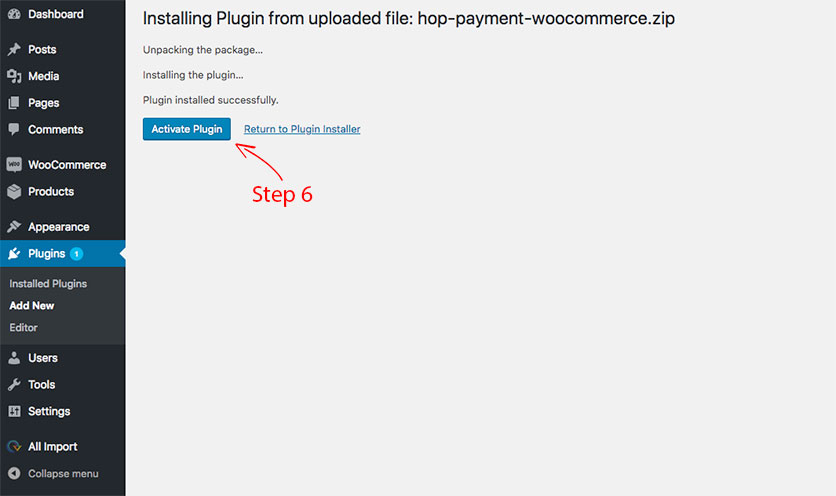
- Step 6: Click activate plugin
Configure plugin
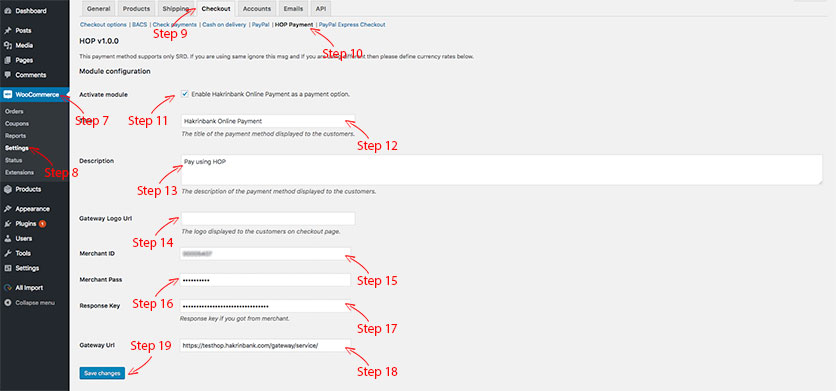
- Step 7: Go to WooCommerce
- Step 8: Click Settings
- Step 9: Go to tab Checkout
- Step 10: Click HOP Payment in the checkout options
- Step 11: Check Activate Module
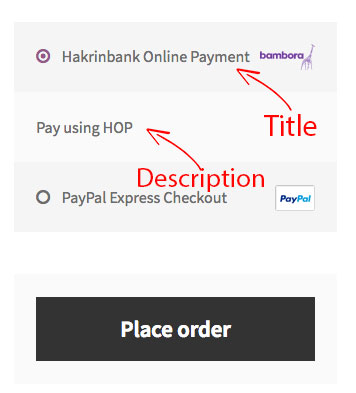
- Step 12: Enter a Title
- Step 13: Enter a Description
- Step 14: Enter aGateway Logo URL
- Step 15: Enter your Merchant Id
- Step 16: Enter your Merchant Password
- Step 17: Enter your Merchant key
- Step 18: Enter the Gateway URL
https://hop.hakrinbank.com/gateway/service/ - Step 19: Save changes
The plugin should now be visible in the shop as a checkout option.
Magento 2
Download the HOP Magento 2 plugin.
- Step 1: Extract “Hop-payment-for-Magento2.zip”. It wil create a folder called “app”.
- Step 2: Copy the complete “app” folder to the root of your magento installation.
- Step 3: Go to the root of your magento installation in your Command Line Interface
- Step 4: Run command:
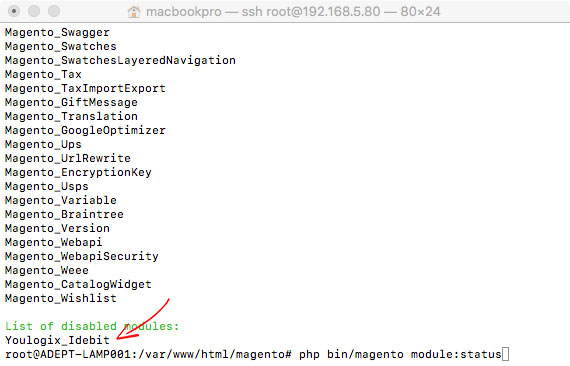
php bin/magento module:status
You should see that the following module is disabled:
Youlogix_Idebit
- Step 5: Run command:
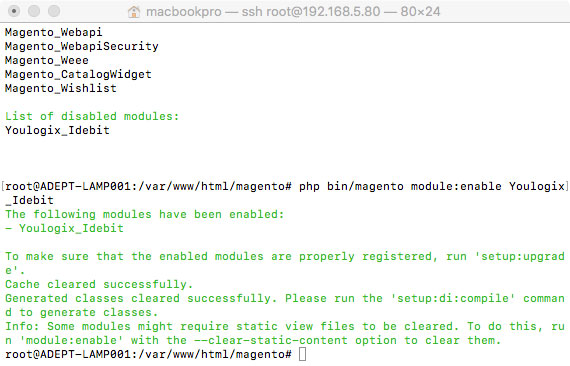
php bin/magento module:enable Youlogix_Idebit
- Step 6: Run command:
php bin/magento setup:upgrade - Step 7: Run command:
php bin/magento setup:di:compile
Configuring the module
- Step 1: Login to the Magento Backend
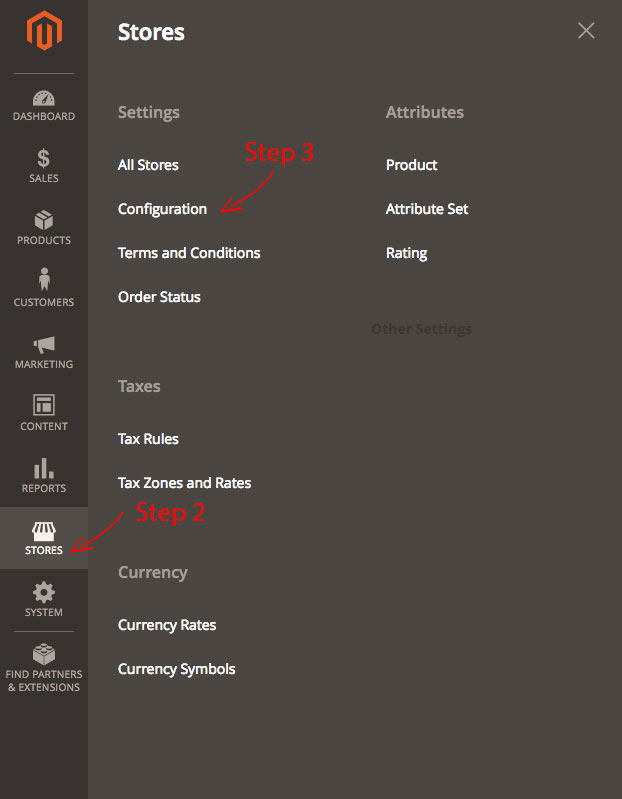
- Step 2: Select “Stores”
- Step 3: Select “Configuration”
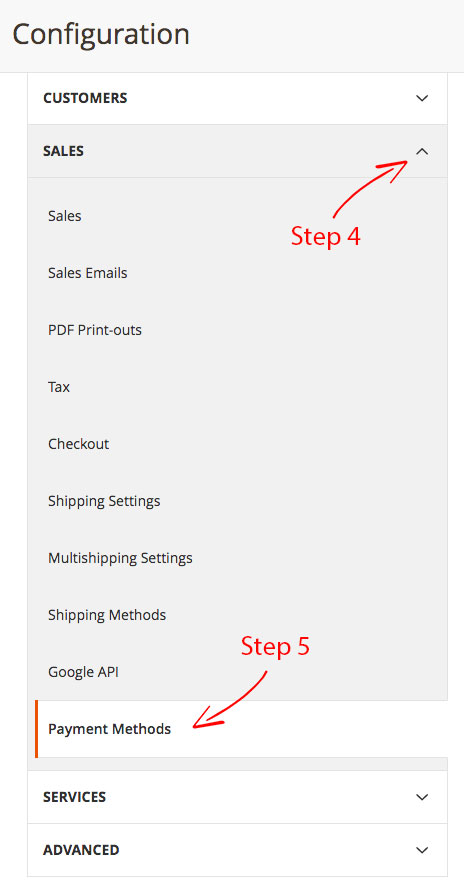
- Step 4: Expand “Sales”
- Step 5: Select “Payment Methods”
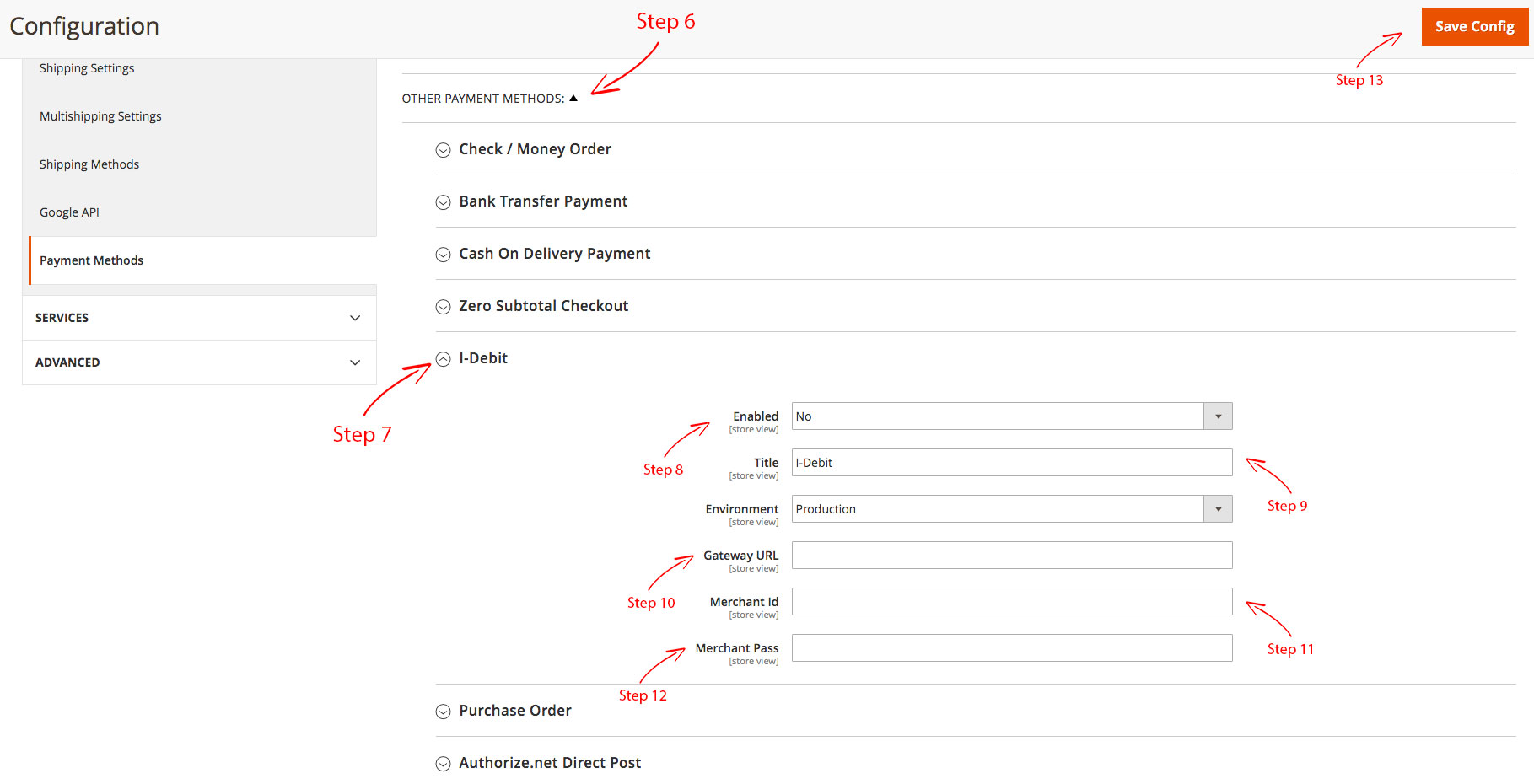
- Step 6: Expand “Other payment methods:”
- Step 7: Expand “I-Debit”
- Step 8: Change “Enabled” to “Yes”
- Step 9: Change “Title” to “Hakrinbank Online Payment”
- Step 10: Enter valid “Gateway URL” (e.g.
https://hop.hakrinbank.com/gateway/service/) - Step 11: Enter valid “Merchant Id”
- Step 12: Enver valid “Merchant Pass”
- Step 13: Click “Save Config”
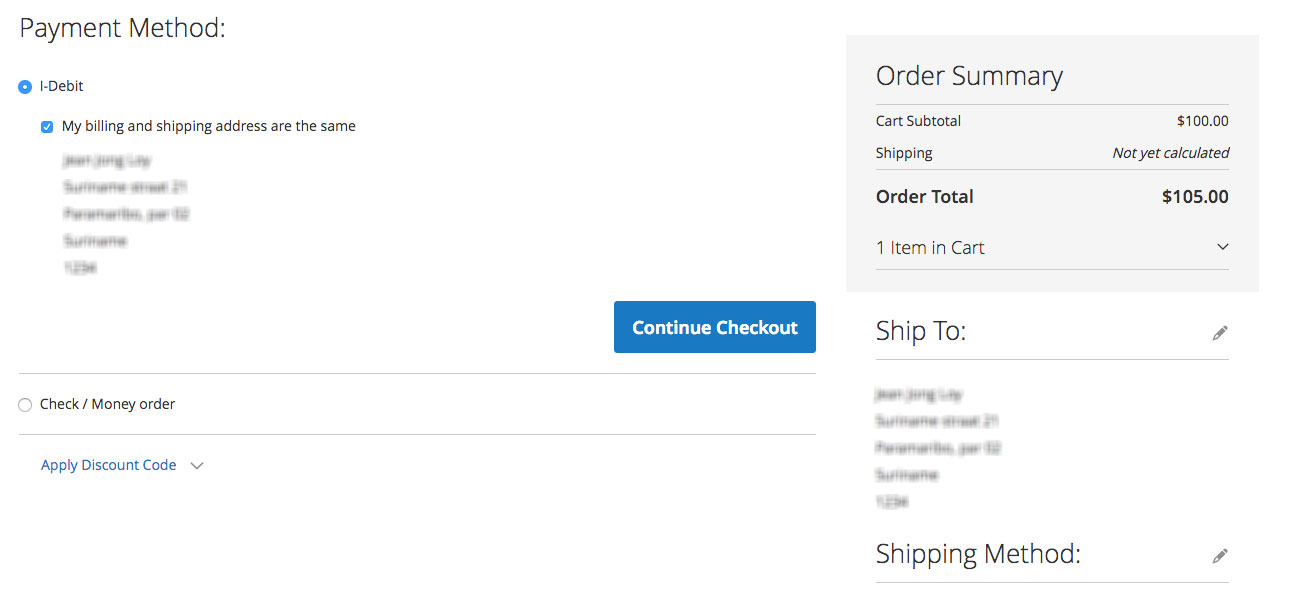
Your module has been configured
At the checkout process I-Debit (HOP Payment) should be visible
Magento 1.9
Download the HOP Magento 1.9 plugin.
Log into magento 1 backend
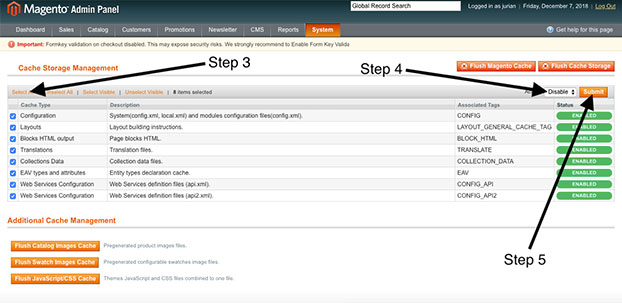
Disable cache
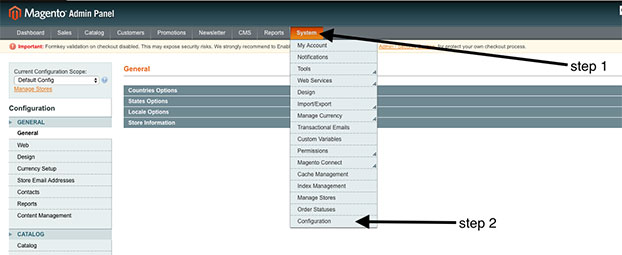
- step 1: Go to system
- step 2: Go to Cache management

- step 3: Select all fields
- step 4: Select Disable
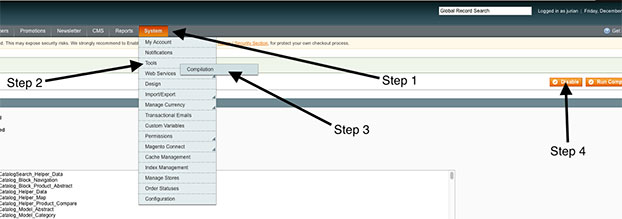
Disable compiler
- step 1: Go to system
- step 2: Go to tools
- step 3: Go to compilation
- Step 4: Click on disable
- Step 5: Click on Submit
Copy plugin files to Magento root
- step 1: Extract “Hop-payment-for-Magento2.zip”. It wil create a folder called “app”.
- step 2: Copy the complete “app” folder to the root of your magento installation.
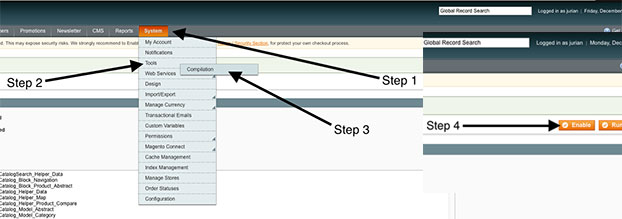
Enable compiler
- step 1: Go to system
- step 2: Go to tools
- step 3: Go to compilation
- Step 4: Click on enable
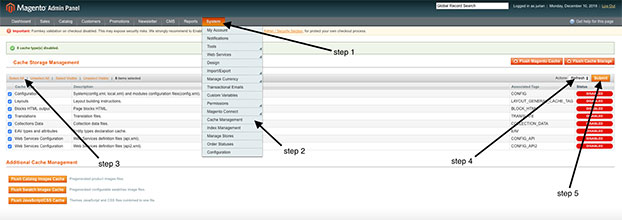
Enable Cache management
- step 1: Go to system
- step 2: Go to Cache management
- step 3 : Select all fields
- step 4: Select Enable
- step 5: Select Submit
Configure plugin
- step1: go to system
- step 2: go to configuration
- step 3: go to payment methods
- step 4: change enabled to yes
- step 5: enter valid merchant id
- step 6: enter valid merchant pass
- step 7: enter valid gateway URL